Step 1 : Configuration of RazorPay
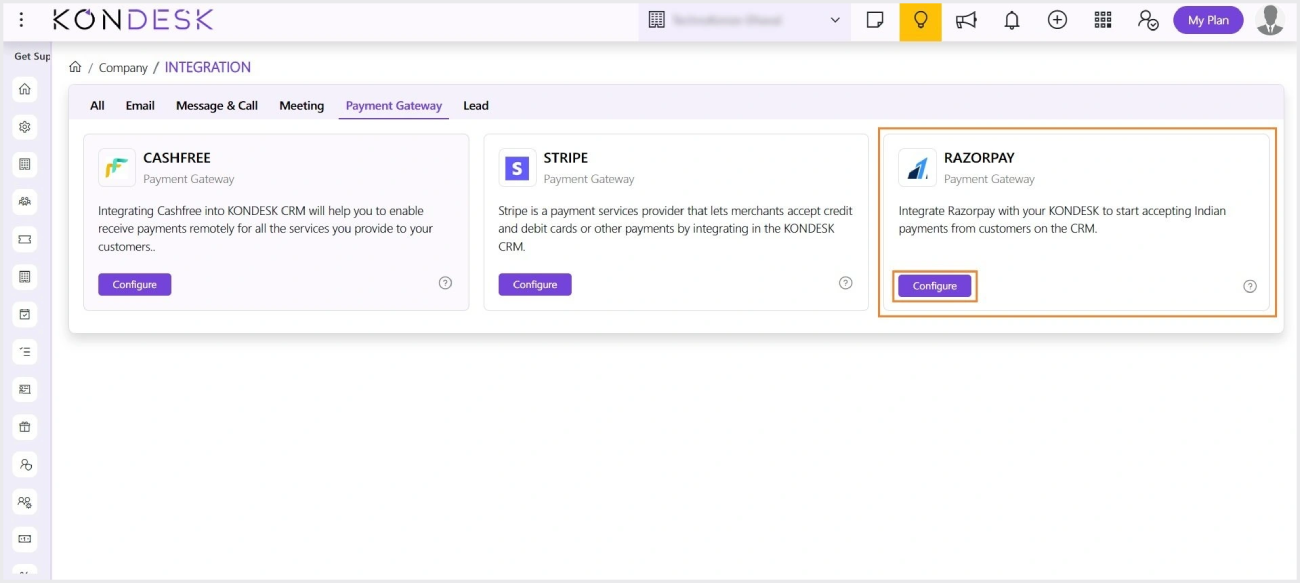
Step 1.1 : From the KONDESK dashboard page, click on Company and select Integration.
Step 1.2 : Click on the configure button for integrate RazorPay.
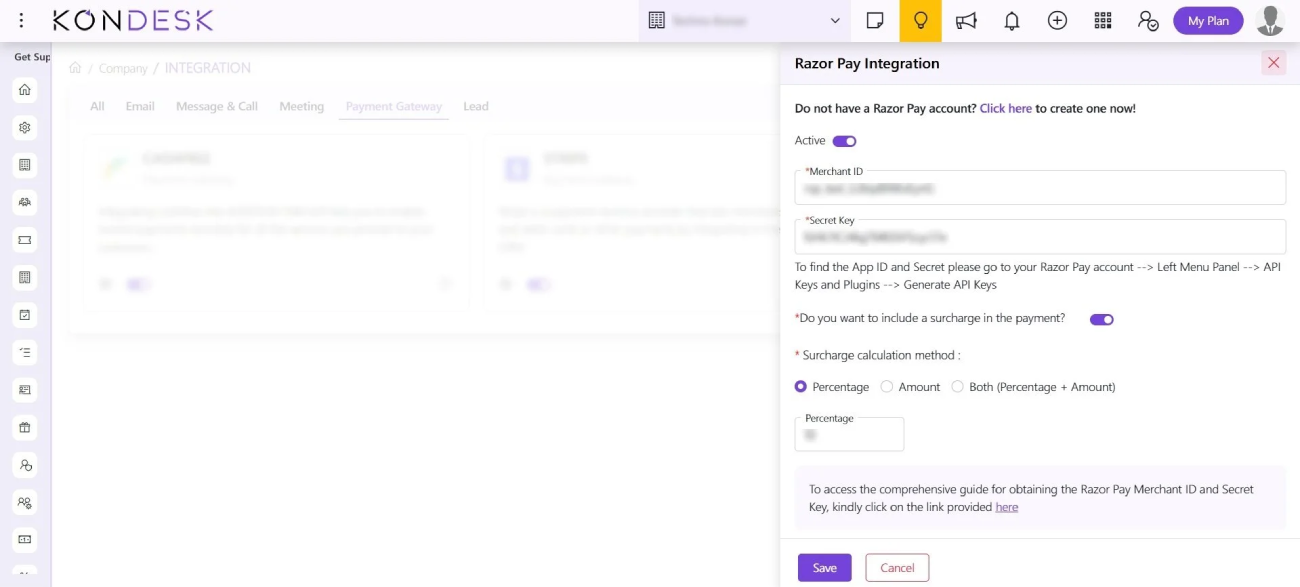
Step 1.3 : The system will open a window to toggle on the Active button, and enter the APP ID, secret key and click on save.
Note: You can find the APP ID and secret key in your RazorPay account under Developers > API Keys. Follow (API Key) to get detailed steps to access the required keys to configure successfully.
Step 1.4 : The option to choose RazorPay as a payment method will be available when the clients open the link sent to make the payment.
Note: Currently, RazorPay supports only India and INR (Indian Rupees). Only the organizations with India as their country will be able to setup RazorPay as their payment gateway. Additionally, RazorPay is visible only to users who have set their currency to “INR” under Advance Settings → Regional.
Once you enable “RazorPay” from Integration, it will be displayed while adding the Finance a Bank Account.
Step 2 : Setting up/ Editing of Bank Account.
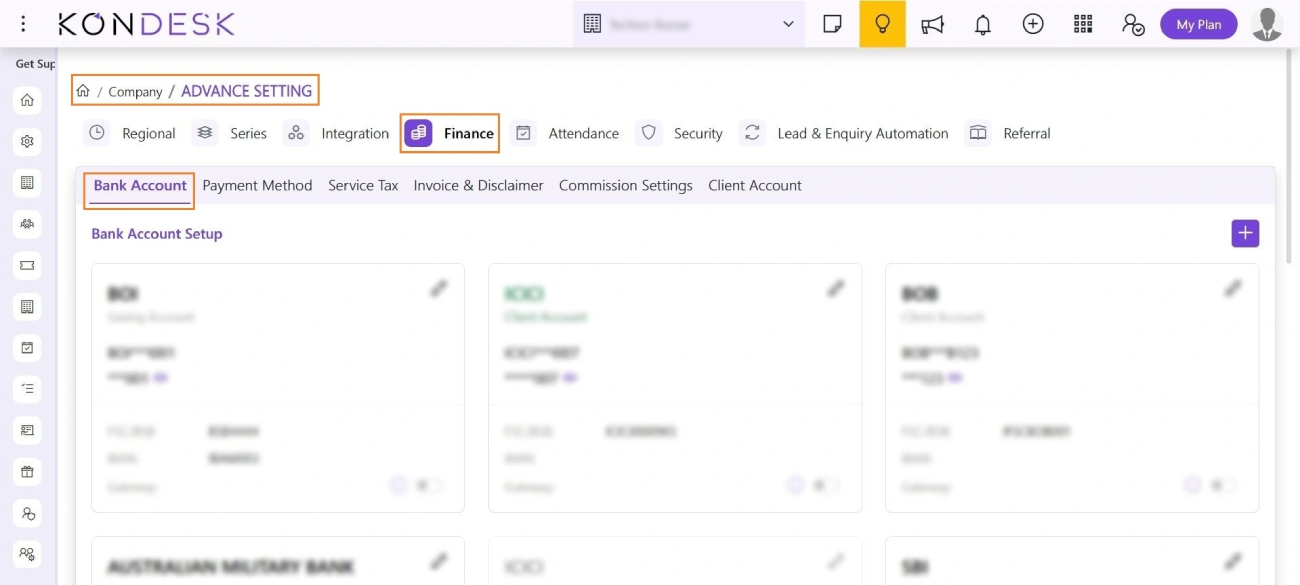
Step 2.1 : From the KONDESK menu bar, Click on Company and select Advanced Settings.
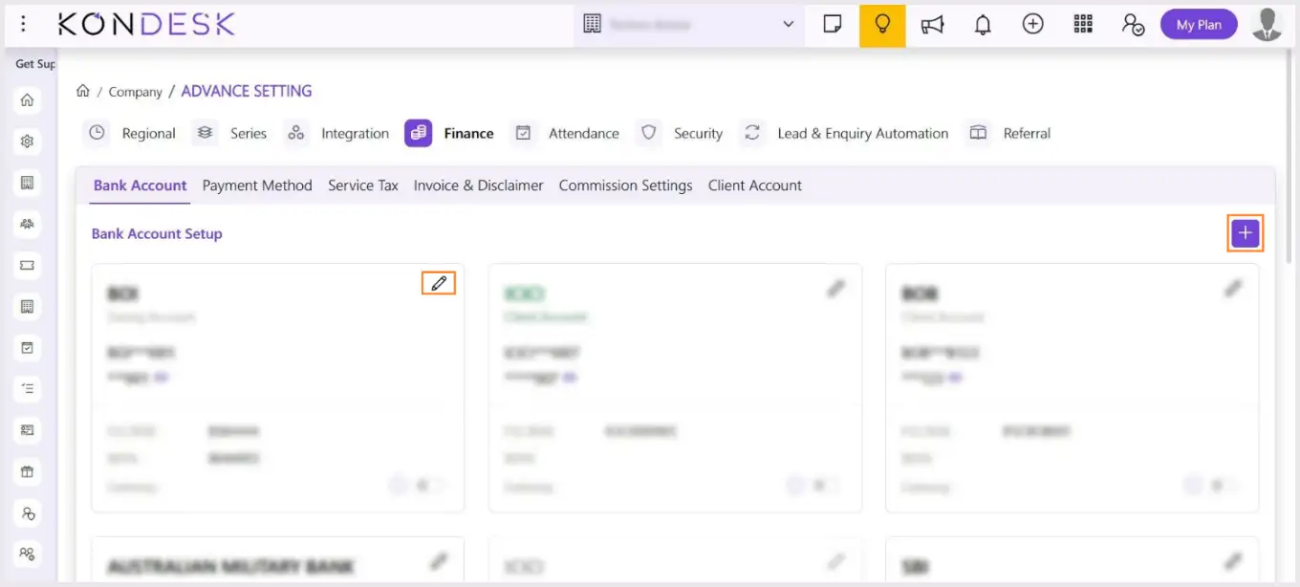
Step 2.2 : On the Advanced settings page, go to the Finance Tab a Bank Account
Step 2.3 : To set up a new Bank account, click on the Add button, and for updating an already existing bank account click on the Edit button.
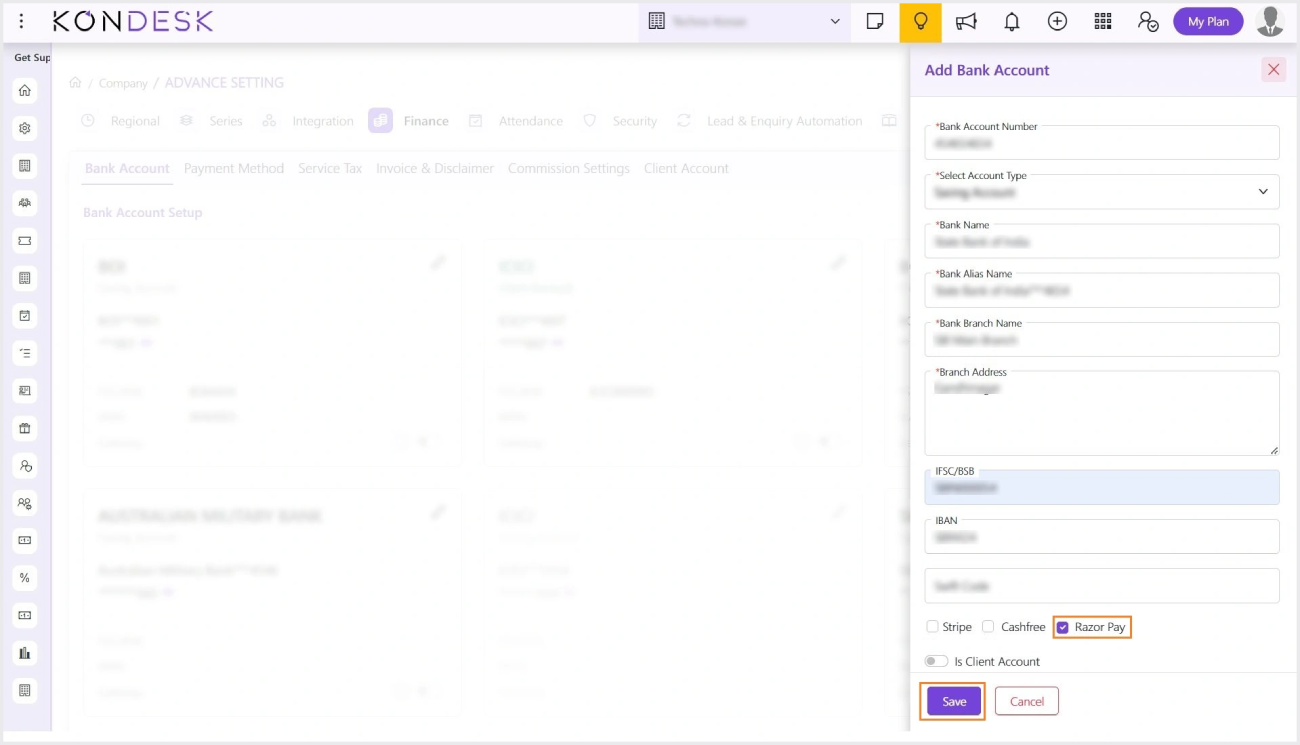
Step 2.4 : The system will display the “Add Bank Account” dialog. Enter the necessary details, select the RazorPay checkbox, and click “Save” to successfully configure RazorPay.
Note: The “RazorPay” option will only be displayed while adding a bank account after you have set up “RazorPay” under Company -> Integration.

 ⇄
⇄