We are excited to introduce our integration with Zapier, enabling KONDESK to seamlessly connect with hundreds of apps and automatically capture enquiries from multiple sources directly into the CRM.
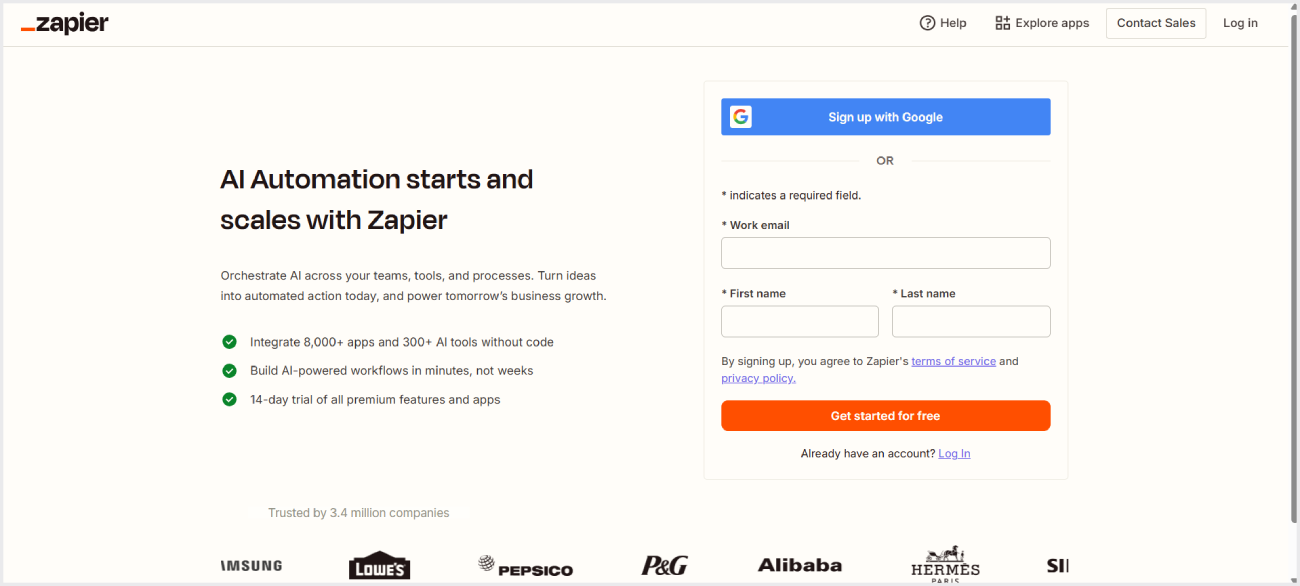
Step 1 : Sign up and log in to your account on Zapier
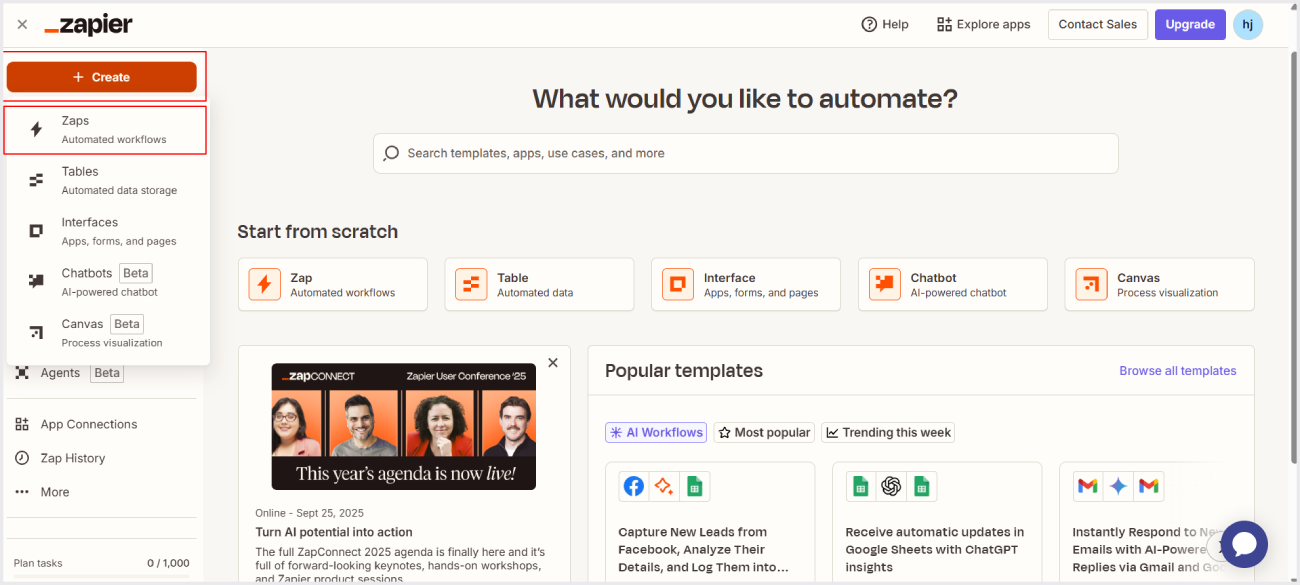
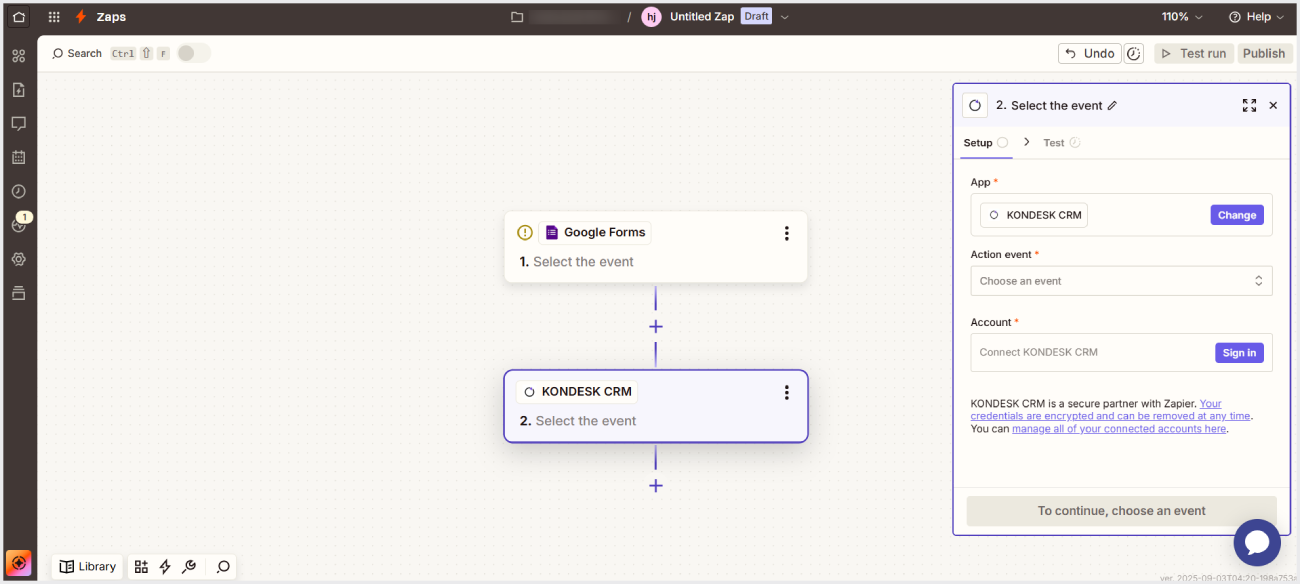
Step 2 : Create a new Zap on Zapier, using any compatible app (e.g., WhatsApp) as the Trigger and KONDESK as the Action as shown below.
Step 3 : In the Trigger App, configure the required fields and make sure to include the below-specified Tags (at least the required tags must be added).
| Left column | Right column |
|---|
| First Name* | Last Name |
| Email Address* | Date Of Birth |
| Phone Number* | National Code |
| Nationality | Message |
| Address Line 1 | Address Line 2 |
| Country | State |
| City | Zip Code |
| Inquiry Type | UTM Source |
| UTM Medium | Gender |
Step 4 : Set up, configure, and test the Trigger (first app) to ensure it is capturing the required data correctly.
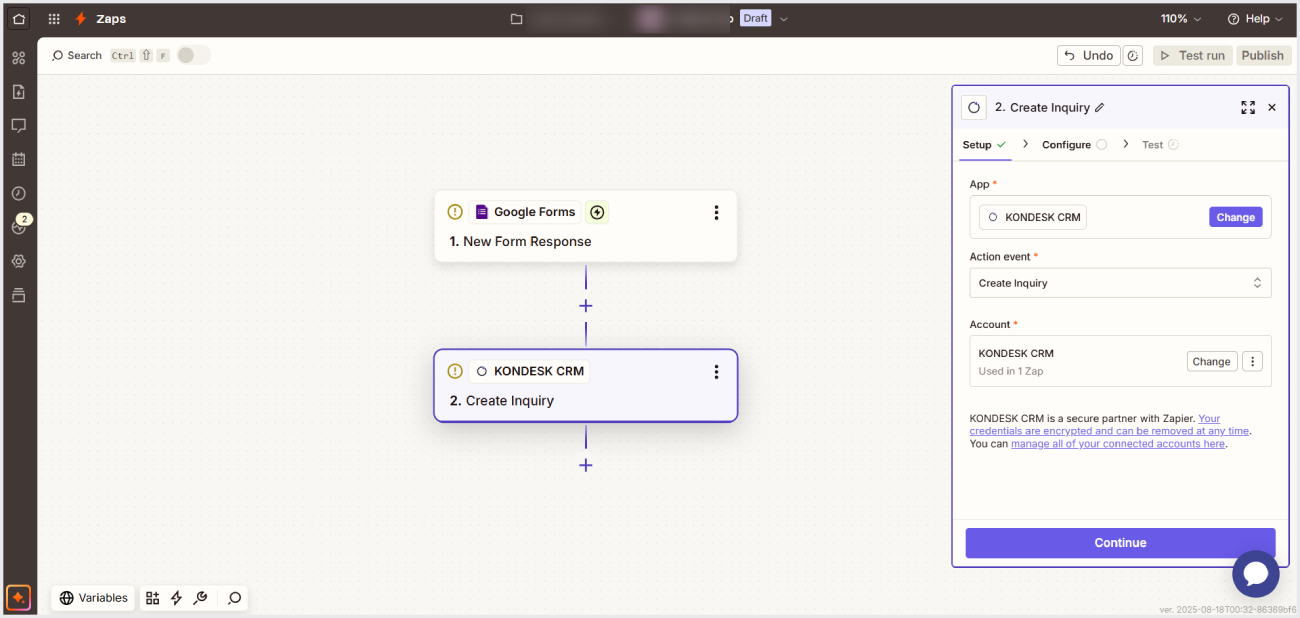
Step 5 : In the second step (Action), select KONDESK as the App. Choose Create Enquiry as the Action Event, then connect your KONDESK account by entering your credentials. Once connected, click Continue as shown below.
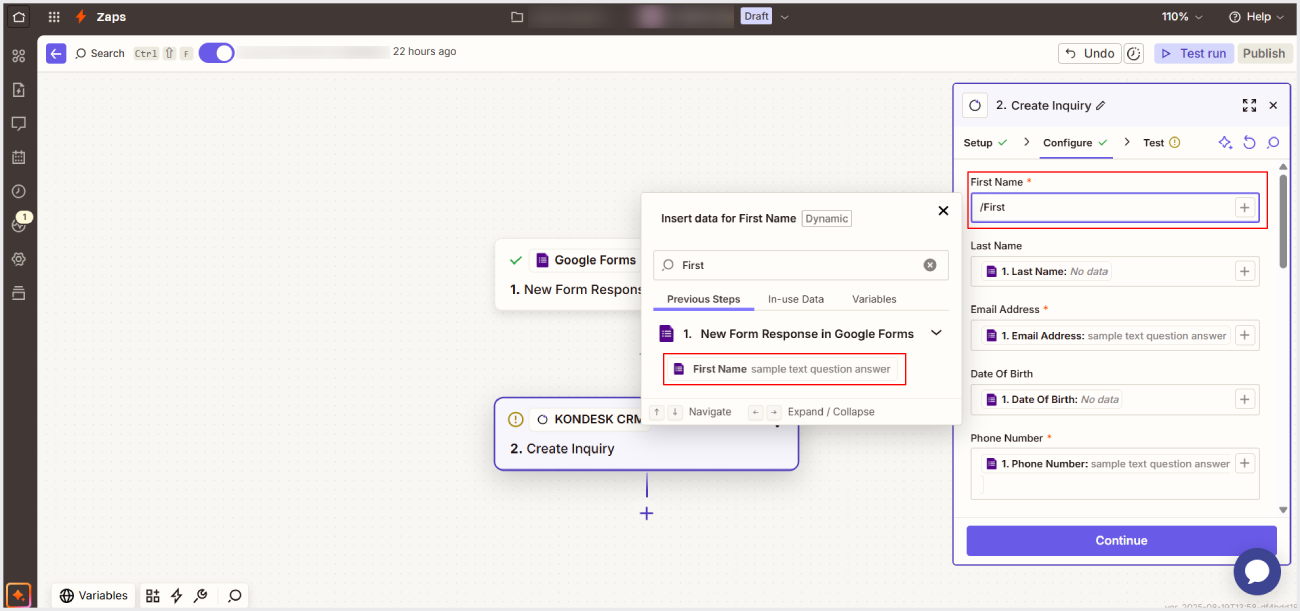
Step 6 : You will now see a list of fields required to create an enquiry in KONDESK in Configure tab. Map each field with the corresponding field from the Trigger App by typing: /Field_Name.
Step 7 :For example, in the First Name field, enter /First Name as shown below. Complete all the fields in the same manner.
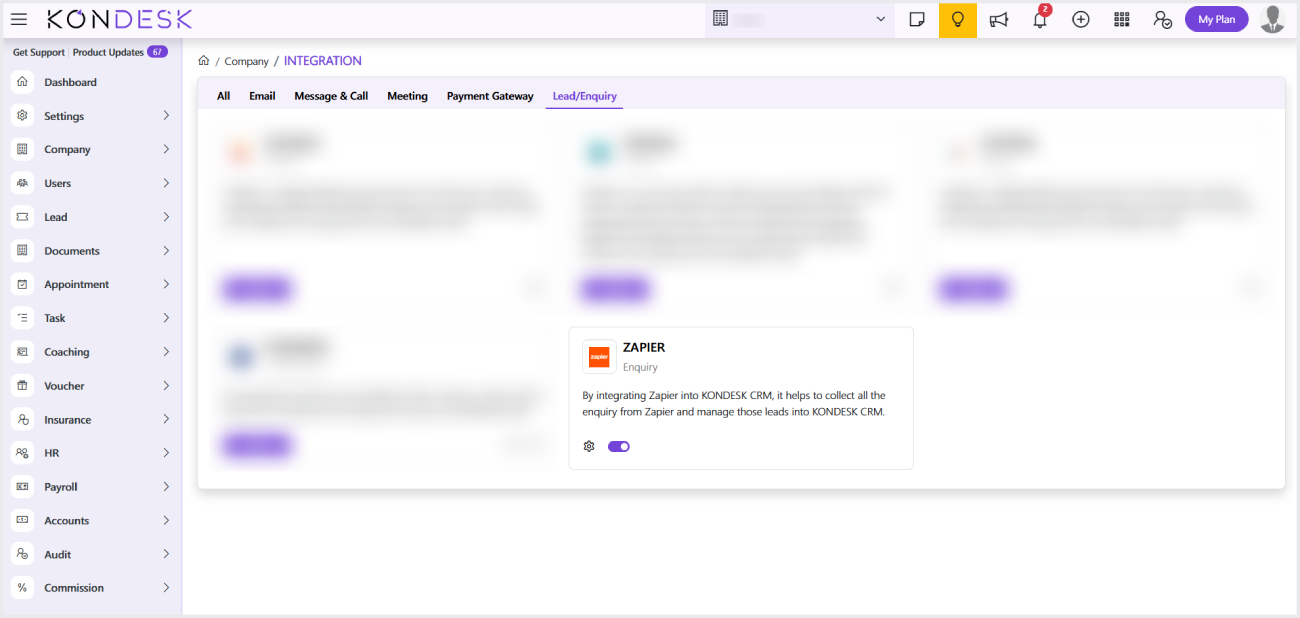
Step 8 : In KONDESK, From the left-hand side menu, click on Company and Select Integration.
Step 9 : The system will open a card view for all the available integrations in the CRM together, and can also be viewed under their respective categories.
Step 10 : Of all the available integrations, on the Zapier Card, click on the Settings icon and activate the Integration.
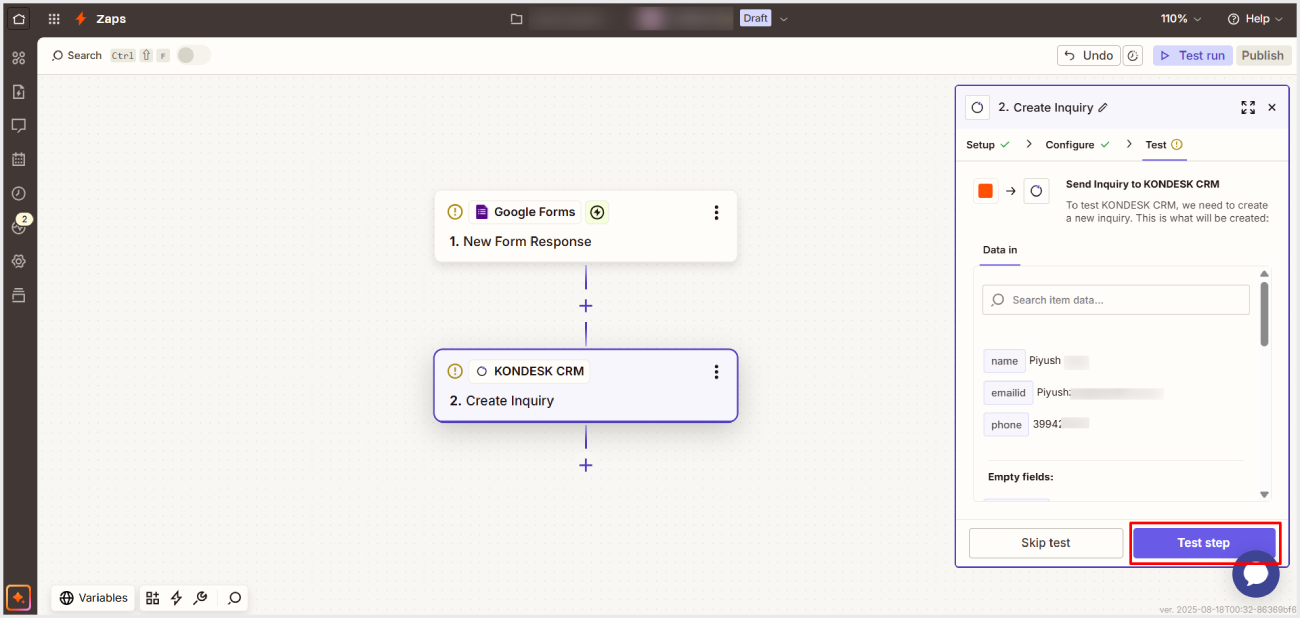
Step 11 : In Zapier, go to the Test tab and click on “Skip Test”.
To properly test the feature, enter sample data in the Configure tab instead of using mapped fields.
For example, in the First Name field, enter “Rahul”.
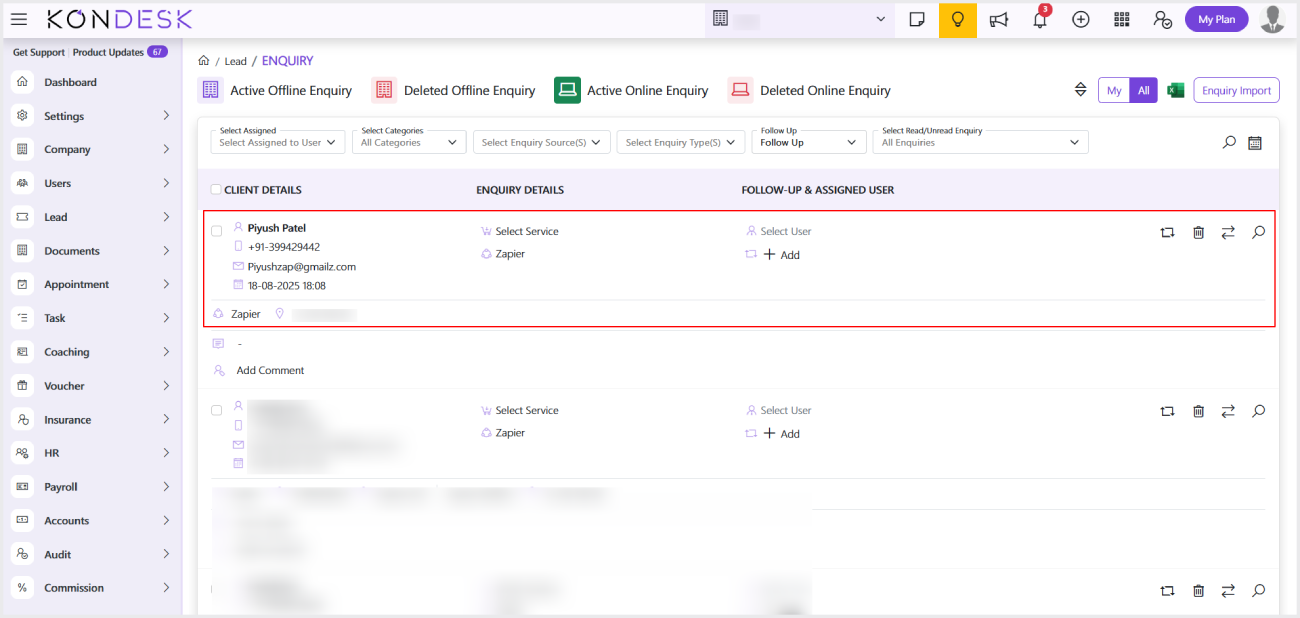
If the test is successful, an enquiry will be created in KONDESK under the Active Online Enquiry tab, with the enquiry source displayed as Zapier.

 ⇄
⇄